Before You Look at a Single Spec
Buying a laptop for work is one of those decisions that feels straightforward until you’re actually looking at the options. Every model looks similar on the shelf, most run the same operating system, and the spec sheets are filled with numbers that only start to mean something once you know how to read them. This guide explains what actually matters when choosing a work laptop, what to look for in a laptop for business, and how to match the right specs to the way you actually work.
Before you look at a single specification, think about what you actually do on a laptop all day.

A business professional who works in email, spreadsheets, slide presentations, and video calls has completely different needs from a designer working with large files in Adobe Creative Suite, a developer running multiple virtual environments simultaneously, or a finance analyst crunching large datasets. The best laptop for working from home in one of these roles would be actively wrong for another.
The most common mistake when buying a work laptop is buying for a vague sense of “power” rather than for a specific workload. You end up overpaying for performance you’ll never use, or buying a beautiful machine that lags every time you open more than a few applications.
A useful starting framework: if your day consists primarily of browser tabs, email, documents, and video calls, a mid-range processor with 8GB to 16GB of RAM and a good battery is everything you need. If you work with large media files, run complex software, develop and test code, or frequently multitask across many applications, you need more processing power and at least 16GB of RAM. If you do any graphics-intensive work — design, video editing, 3D modelling — a dedicated GPU becomes relevant.
Processor: The Engine Under the Hood
The processor is the core of any laptop. For general office work — documents, email, spreadsheets, and video calls — an Intel Core i5 or AMD Ryzen 5 from a recent generation is more than adequate. These offer a strong balance of performance and energy efficiency, which directly affects battery life.
For more demanding work like software development, data analysis, video editing, or running multiple resource-intensive applications simultaneously, an Intel Core i7 or AMD Ryzen 7 is the right step up. Core i9 or Ryzen 9 are largely overkill for business use unless your work involves rendering, machine learning, or professional-grade video production.
In 2024 and 2025, a new category called AI PCs emerged — processors including Intel Core Ultra and AMD Ryzen AI feature dedicated neural processing units (NPUs) for AI-accelerated tasks. If your workflow involves AI-assisted tools, these offer real gains. For standard business use, a conventional processor from the past two or three generations performs excellently, often at a lower price.
Memory: How Much RAM Do You Actually Need?
RAM is the working memory of your laptop. More RAM allows you to run more applications simultaneously without things slowing down. For most business users, 8GB is the minimum and 16GB is the practical sweet spot. With 16GB you can comfortably run a browser with multiple tabs, email, a video call, a document editor, and a communication platform like Slack simultaneously without performance degradation.
If you frequently work with large spreadsheets, databases, code compilation, or video editing, 32GB is a worthwhile investment — it will also keep the laptop performing well for longer as software requirements grow. For standard office tasks, 8GB works but leaves little headroom.
Storage: Speed Over Space
Modern laptops almost universally use solid-state drives (SSDs) rather than older spinning hard disk drives (HDDs), and for good reason. SSDs are faster, quieter, more durable, and more energy efficient. For a work laptop, 256GB is the practical minimum, though 512GB is more comfortable if you work with larger files or prefer to keep things stored locally. 1TB models are increasingly common and offer genuine peace of mind at a reasonable cost premium.
Avoid HDDs for a primary work laptop. The performance difference in day-to-day use is immediately noticeable — boot times, application loading, and file access are all significantly slower. Some budget machines still ship with HDDs; it’s worth the slight price increase to ensure you get an SSD.
Display: Size, Resolution, and What You Actually Need
For most business tasks, a Full HD display at 1920 x 1080 pixels is the right choice. It provides sharp, clear text and images for documents and presentations, is gentle on battery life compared to higher-resolution panels, and is the standard that almost all business content is produced for.
Screen size is largely a portability question. A 13 to 14 inch screen makes for a lighter, more compact device that’s genuinely comfortable to carry in a bag all day. A 15 to 16 inch screen offers a more comfortable working experience when the laptop is on a desk, but adds noticeable weight and bulk. Most business travellers and hybrid workers settle on 14 inches as the sweet spot.
For design work or any role requiring colour accuracy, a display with good colour gamut coverage and calibration matters — IPS and OLED panels offer better colour accuracy than standard TN panels. Anti-reflective coatings are worth looking for if you frequently work near windows or in brightly lit offices.
A 4K display is generally unnecessary for most business tasks. It improves visual sharpness but costs more, consumes more battery, and for the majority of office work — documents, emails, slides — the practical difference in value is minimal.
Battery Life: The Spec That Changes Everything on the Move
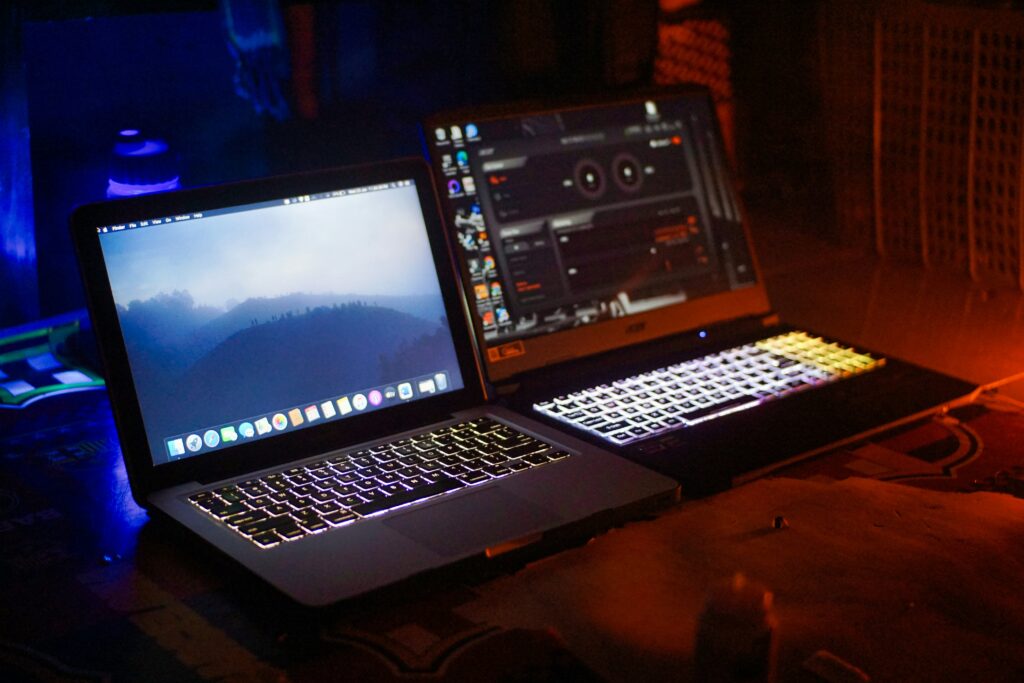
Battery life is one of the most important specs for a work laptop, and also one of the most misleading. Manufacturer claims are typically measured under ideal conditions that don’t reflect real-world use. A laptop rated for 15 hours will typically deliver 8 to 10 hours under normal working conditions — with brightness up, multiple applications running, and video calls happening.
For a business laptop, aim for a device that delivers at least 8 to 10 hours of realistic use, and look at independent review benchmarks rather than manufacturer claims. Models with fast-charging capability are particularly useful — some can reach 50 to 80 percent charge in under an hour, effectively turning a short meeting break into a meaningful charging opportunity.
If you work mostly at a desk with power access, battery life is a secondary concern. If you frequently work on the move — in meetings, in coffee shops, or on flights — it becomes one of the primary specs to optimise for.
Keyboard and Trackpad: The Specs Nobody Talks About Enough
These are the components you interact with for every minute of use, and they receive proportionally less attention in spec comparisons than they deserve. A poor keyboard makes a fast laptop unpleasant to use.
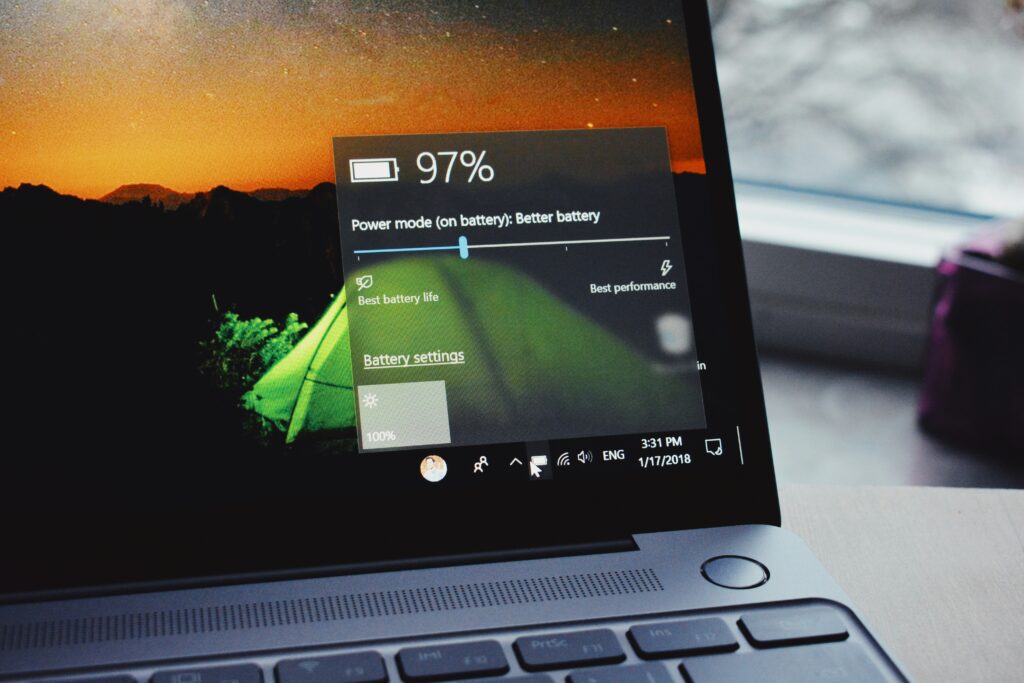
Key travel — how far the keys press down — varies significantly across laptop models. The preference is personal, but deeper travel generally feels more comfortable during extended typing sessions. Backlit keyboards are worth having for anyone who works in varied lighting conditions: dim meeting rooms, aircraft cabins, hotel rooms.
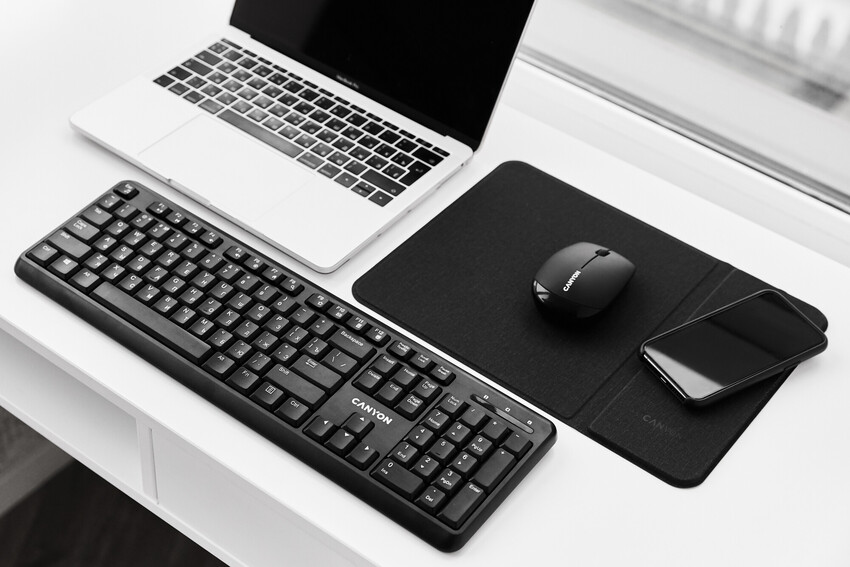
The trackpad should be smooth and responsive, with multitouch gestures that work reliably. Higher-end business laptops invest noticeably more in trackpad quality, and it shows. If you find yourself frequently frustrated by a laptop’s trackpad, a wireless mouse resolves the problem at minimal cost and weight.
Ports, Connectivity, and Not Being Stranded
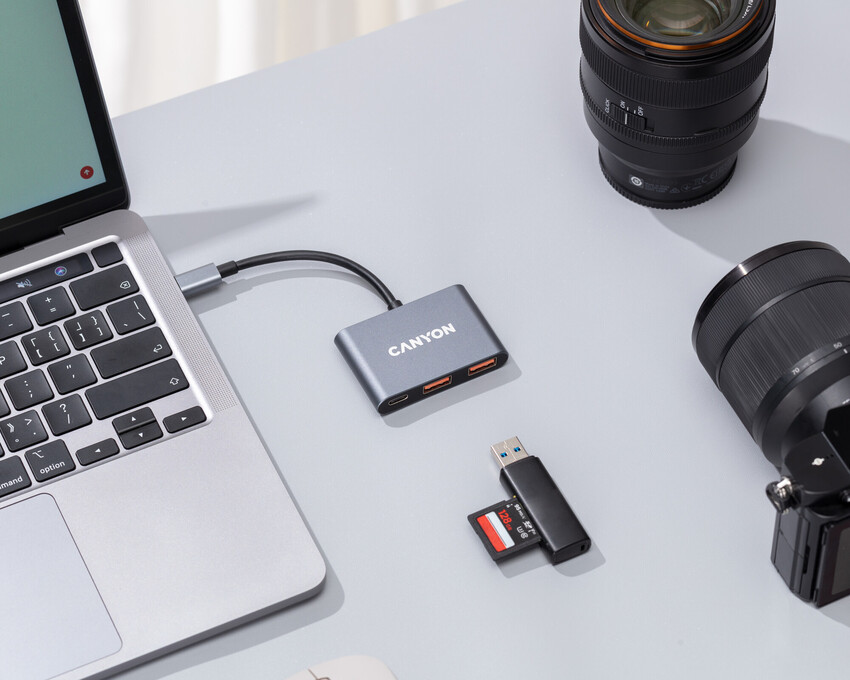
Ports matter more than they get credit for in buying decisions. USB-C has become the dominant standard for charging and high-speed data transfer, but if you regularly connect a monitor, external drive, and USB accessories simultaneously, you need either a laptop with multiple ports or a quality USB hub.
A USB hub turns a single USB-C port into multiple USB-A and USB-C connections, HDMI or DisplayPort for external monitors, and an Ethernet port for stable wired internet. Canyon’s USB hub range is a practical and affordable complement to any work laptop — particularly important for ultrabooks and newer machines that ship with limited port selection.
For wireless connectivity, Wi-Fi 6 support is standard on most current business laptops and offers meaningfully faster and more stable connections than older Wi-Fi 5 devices, especially in environments with many connected devices such as open offices and hotels.
Security Features Worth Having
Business laptops increasingly include hardware security features that are worth prioritising. A fingerprint reader allows fast, secure login without typing a password every time. Windows Hello facial recognition does the same on supported models. A TPM (Trusted Platform Module) chip provides hardware-level encryption support, which matters for businesses with data security requirements.
For a laptop that will travel frequently: some models include a Kensington lock slot so the device can be physically secured at a desk, and certain designs include a built-in privacy screen that makes the display unreadable from the side — useful in coffee shops, airport lounges, and anywhere you handle sensitive information in public.

Build Quality and Durability
For a laptop that lives in a bag and gets carried between desk, meeting room, and travel, build quality matters in proportion to how much it moves. Aluminium and magnesium alloy chassis are lighter and more durable than plastic. MIL-STD-810H certification indicates the device has passed military-standard tests for temperature, humidity, vibration, and drop resistance — not that it’s indestructible, but that it’s been meaningfully tested.
Spill-resistant keyboards are worth looking for if you work with a coffee or water bottle nearby, which describes most people’s desk setup.
Matching Specs to Your Role
Rather than prescribing specific models — which change quickly as new generations release — here’s how to match the key specs to common business roles.
For standard office work (documents, email, video calls, web research): a 13 or 14 inch laptop with an Intel Core i5 or AMD Ryzen 5, 16GB RAM, 256GB SSD, Full HD display, and 10+ hours of realistic battery life covers every need. This is the most common use case for those wondering how to choose a laptop for work, and it’s well served by mid-range machines.
For working from home at a desk: a larger screen at 15 to 16 inches, strong processing performance, and enough ports that you’re not constantly swapping connections. Battery life is less critical when you’re mostly plugged in. The ability to connect a second external monitor significantly improves productivity for most home office setups.
For travelling business professionals on planes and in meetings frequently: prioritise weight, battery life, and durability above everything else. A light 13 to 14 inch device with genuine 10+ hours of battery life, a compact charger, and a durable build is worth the trade-off in raw performance.
For developers and technical roles: 16GB RAM minimum with 32GB preferred, a fast multi-core processor, and a comfortable keyboard for extended coding sessions. Screen quality matters for reading code, and a larger display or multi-monitor support is beneficial.
For creative professionals doing video editing, design, or 3D work: a dedicated GPU moves from nice-to-have to necessity. Look for a discrete graphics card with its own VRAM, a high-resolution display with good colour accuracy, and enough RAM and storage to handle large files without performance drops.
Accessories That Complete the Setup
The laptop is only part of the equation. The accessories you pair with it determine how productive your working environment actually is.
A USB hub expands limited port selection and turns a single USB-C laptop into a functional multi-device workstation. Canyon makes a range of USB hubs that add USB-A ports, HDMI output for an external monitor, card readers, and Ethernet in a compact desk-friendly form factor — an essential companion for any ultrabook with minimal ports.
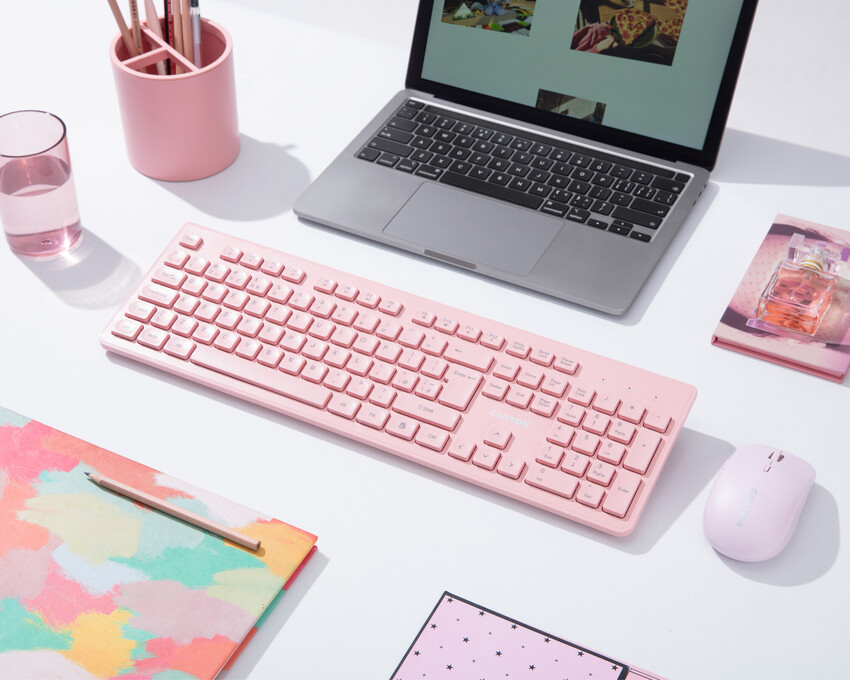
A wireless mouse makes extended work sessions more comfortable than a trackpad and gives more precise control. Canyon offers a range of ergonomic and compact wireless mice suited to both desk and travel use.
A carrying bag or backpack that fits the laptop properly and protects it during transport is not an afterthought. Canyon makes backpacks in sizes up to 15.6 inches with padded laptop compartments, document pockets, and anti-theft features — designed for the working day rather than just the commute.
Choosing Confidently
Knowing how to choose a laptop for work comes down to a clear sequence: define your workload, identify the minimum specs that meet it, then optimise for the factors that matter most to your situation — battery life, display quality, build durability, or price.
Avoid the trap of buying the most powerful option in your budget on the assumption that more is always better. A well-chosen mid-range laptop perfectly suited to your actual work will serve you better than a top-spec machine that’s too heavy to carry, has disappointing battery life, or sacrifices keyboard quality for a thinner profile.
The best work laptops are the ones people genuinely enjoy using every single day — and that’s as much about build quality, keyboard feel, and battery life as it is about processor benchmarks.
 Tatyana Ryzhova