Ever wondered how to keep someone from hacking your phone, laptop or tablet? You are in the right place!
Let’s be honest — our smartphones, smart watches, tablets, and laptops are basically our lifelines these days. But that also makes them prime targets for hackers and cyber threats. Cybercriminals are constantly finding new ways to break into devices, so staying ahead of them requires some proactive steps.
To help you out, we’ve put together 30 down-to-earth security tips to keep your devices safe, whether you’re at home, at work, or sipping coffee at your favorite café. Find out how to secure devices below.
1. Lock Your Screen — Seriously, Just Do It
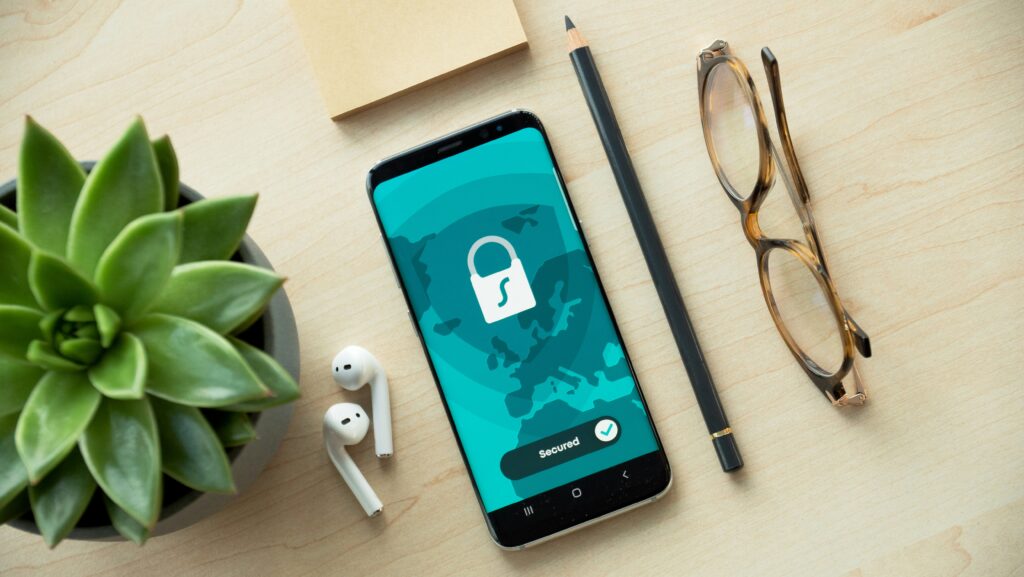
Ever lost your phone for a few minutes and felt that mini heart attack? Now, imagine if it was stolen and someone could access all your personal info. Not fun. A screen lock won’t stop a thief from taking your phone, but it will at least prevent them from snooping through your data. Here’s what you can use:
- Passcode: A simple but effective combo of numbers or letters.
- Pattern Lock: A quick-draw pattern that’s easy for you but tough for others to guess.
- Fingerprint Sensor: Unlocks only with your unique fingerprint.
- Face Recognition: Uses your face as a key (as long as you’re not using a twin’s phone!).
Make sure your phone locks automatically after a short period of inactivity — this secures your data and also saves battery life.
2. Turn Off Bluetooth When You’re Not Using It
Bluetooth is great for connecting to wireless earbuds or car speakers, but leaving it on 24/7 is not a good idea. Hackers can exploit Bluetooth connections to hijack your device or plant malware.
To stay safe, only pair with devices you trust. Moreover, turn Bluetooth off when you’re not using it.
A few extra seconds of effort can save you from potential cyber headaches.
3. Stop Ignoring Those Software Updates
We’ve all hit “Remind me later” on updates notifications. But here’s the thing — those updates aren’t just about new emojis; they patch security holes that hackers love to exploit. Keep your device up to date by checking manually if needed:
- iPhone users: Go to Settings > General > Software Update.
- Android users: Head to Settings > About Phone > System Updates.
Pro tip: Turn on automatic updates so you don’t even have to think about it.
4. Be Smart About Public Wi-Fi
We all love free Wi-Fi, but let’s face it — it’s often a hacker’s playground. Cybercriminals set up fake networks to steal your data, so don’t just connect to any network you see. Here’s how to avoid trouble:
- Check the network name. If you see “Cafe Guest” and “Cafe Geust,” you know which one to avoid.
- Use secure connections. WPA3 or WPA2 networks are safer; WEP is a no-go.
- Forget the networkwhen you’re done. Prevents automatic reconnections that could put your device at risk.
When in doubt, don’t enter any sensitive information (like banking details) on public Wi-Fi.
5. Use a VPN — It’s Worth It
A Virtual Private Network (VPN) keeps your browsing private and encrypts your internet traffic, making it much harder for hackers to see what you’re doing, especially on public Wi-Fi. Services like Panda VPN for Android can help mask your online activity and keep your data secure.
6. Only Download Apps from Trusted Sources
Sketchy apps are a hacker’s dream. If an app isn’t from an official store like the Apple App Store or Google Play, think twice before installing it. Before downloading, check:
- The number of downloads and reviews;
- The last update of an app (if it hasn’t been updated in years, skip it);
- Whether the developer info looks legit.
If something feels off, it probably is.
7. Enable Multi-Factor Authentication (MFA) Because Passwords Aren’t Enough
Using a strong password is great, but adding Multi-Factor Authentication (MFA) is even better. MFA requires a second step, like a text message code or fingerprint scan, before logging into accounts. That way, even if a hacker gets your password, they won’t be able to access your stuff.
8. Encrypt Your Data for Extra Protection
If your phone is stolen, the last thing you want is someone rifling through your emails, photos, or banking details. Encrypting your data makes it unreadable to anyone who doesn’t have the right credentials. Here’s how to check if your device is encrypted:
- iPhone: Go to Settings > Face ID & Passcode. Scroll down to see if “Data protection is enabled.”
- Android: Head to Settings > Security > Encryption > Encrypt Phone.
Just remember: encryption takes time, so don’t start the process unless your phone is fully charged.
9. Manage Location Tracking — You Don’t Need to Share Everything
Location tracking can be useful for navigation apps, but do all your apps really need to know where you are? Probably not. Protect your privacy:
- Limit location tracking to “Only While Using the App.”
- Turn off location services for apps that don’t need it.
- Disable GPS when you’re not using it.
Less tracking = fewer chances of your data falling into the wrong hands.
10. Install Mobile Security Software — Because Phones Get Viruses Too
We tend to think of antivirus software for computers, but security for the phone is no less important. A good security app can:
- detect and remove malware;
- block phishing attacks;
- offer VPN protection for safer browsing.
Virus protection is one of the most important features in cybersecurity.
11. Stop Your Phone from Auto-Joining Wi-Fi
Ever walked into a café and your phone magically connected to Wi-Fi? Convenient, right? Well, not always. Hackers can set up fake networks with familiar names, tricking your device into connecting. Once that happens, they can intercept your data without you even realizing it.
Here’s how to avoid that:
- Turn off automatic Wi-Fi connection in your settings.
- Manually connect to networks you trust instead of letting your phone decide.
A little extra effort can save you from big security headaches.

12. Audit Your App Permissions — They Don’t Need to Know Everything
Ever downloaded a simple flashlight app only to realize it wants access to your contacts, messages, and location? That’s a huge red flag. Some apps collect way more data than they should, putting your privacy at risk.
To clean things up:
- Go to your App Permissions settings and see what each app can access.
- Revoke permissions for anything that seems unnecessary.
If an app needs access to something that doesn’t make sense, you might want to delete it entirely.
13. Beware of Public USB Charging Stations (“Juice Jacking” is Real)
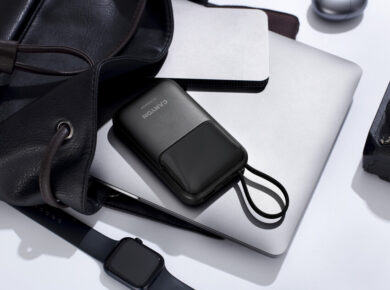
We’ve all been there — low battery, no charger, and a tempting public charging station at the airport or coffee shop. But did you know hacking can modify these USB ports to steal data or install malware on your phone?
Here’s how to stay safe:
- Use your own charging adapter instead of plugging into public USB ports.
- Carry a portable power bank so you’re never forced to rely on public chargers.
Your battery life isn’t worth the risk of having your data stolen.
14. Enable Remote Tracking & Data Wipe — Just in Case
Losing your phone is stressful enough, but what about knowing someone could access all your personal data? That’s terrifying. Thankfully, iPhones and Android devices have built-in tools to track, lock, or erase your device remotely.
Make sure these features are turned on:
- iPhone users: Activate Find My iPhone (Settings > Apple ID > Find My).
- Android users: Enable Find My Device (Settings > Security > Find My Device).
Hopefully, you’ll never need it — but if you do, you’ll be glad it’s there.
15. Stop Using Weak Passwords (Yes, That Means You)
If you’re still using “12345” or “password” (or worse, the same password for everything), it’s time for an upgrade. Hackers love predictable passwords, and once they crack one account, they’ll try the same password on others.
Here’s how to step up your password game:
- Use a password manager to generate and store strong, unique passwords.
- Create passphrases instead of simple words (e.g., “SunsetCoconut!42” instead of “12345”).
- Avoid common passwords like “qwerty” or your birthdate.
Your passwords are your first line of defense — make them count.
16. Turn Off Unused Features
If you’re not using a feature, turn it off! Things like NFC (Near Field Communication), location services, Bluetooth, and Wi-Fi can all be exploited by hackers when left on unnecessarily.
- Disable NFC unless you actively use it for payments.
- Turn off location services for apps that don’t need it.
- Keep Wi-Fi and Bluetooth off when you’re not using them.
Less exposure = fewer vulnerabilities.
17. Avoid Clicking Suspicious Links
Ever get a random text saying you’ve won a prize or need to “confirm your account?” Scammers love phishing attacks, and one careless tap can expose your personal data.
- Never click on links from unknown senders.
- Verify links manually by visiting the official website instead.
- Use email filtering tools to block phishing attempts.
If something seems sketchy, trust your gut — don’t click.
18. Don’t Store Sensitive Data on Your Phone
Your phone is convenient, but it also has its vulnerabilities. Avoid saving things like:
- Banking details or passwords in notes or text files.
- Sensitive personal documents (IDs, tax records, etc.).
- Auto-fill for payment info on browsers or shopping apps.
If you must store something sensitive, use an encrypted storage app or a secure cloud service.
19. Set Up Automatic Backups
Losing your phone is bad. Losing your photos, contacts, and important files with it? Even worse.
- Enable automatic backups to the cloud or an external device.
- For iPhone: Use iCloud Backup (Settings > Apple ID > iCloud > iCloud Backup).
- For Android: Use Google One Backup (Settings > Google > Backup).
That way, even if your phone is lost or hacked, you won’t lose everything.
20. Restart Your Phone Regularly
This one’s super simple but often overlooked! Restarting your phone helps clear temporary files, close background processes, and even remove some types of malware.
Try restarting your phone at least once a week for optimal security. Think of it as a mini-refresh that keeps things running smoothly.
21. Use Airplane Mode to Prevent Tracking
Your phone is constantly pinging nearby cell towers, which makes it easy for someone to track your movements.
- Turn on Airplane Mode in sensitive situations to stop tracking.
- Disable Wi-Fi & Bluetooth scanning in settings, as they can still give away your location even when not connected.
Perfect when you’re traveling, are in a high-risk area, or just want a break from being watched.
22. Be Cautious with Smart Assistants
Voice assistants like Siri, Google Assistant, and Alexa are convenient, but they’re also always listening. Hackers and even companies can exploit this to gather data about you.
- Disable voice activation if you don’t use it regularly.
- Review stored voice data in your assistant’s settings and delete old recordings.
- Turn off assistant access on your lock screen to prevent unauthorized use.
If you don’t need it, turn it off — your privacy will thank you.
25. Delete Old & Unused Apps
Every app on your phone is a potential security risk, especially if it’s outdated or abandoned by developers.
- Go through your apps every few months and delete the ones you don’t use.
- Check the last update date — if it’s been over a year, it might not be secure anymore.
- Remove permissions for apps that no longer need access to your data.
Fewer apps = fewer vulnerabilities.
26. Turn Off Ad Tracking
Companies track your online behavior to serve you targeted ads, but this also exposes your data to third parties.
- For iPhones: Go to Settings > Privacy > Tracking and disable “Allow Apps to Request to Track.”
- For Android: Go to Settings > Privacy > Ads > Opt out of Ads Personalization.
It won’t stop all tracking, but it’ll reduce the amount of data companies collect about you.
26. Be Wary of QR Codes
QR codes are everywhere now, but they’re also a sneaky way for hackers to direct you to malicious websites.
- Always check the source before scanning.
- Use a QR scanner that shows the URL first so you can verify where it’s sending you.
- Avoid scanning random QR codes on posters or flyers in public places.
If a QR code seems suspicious, don’t scan it.
27. Log Out of Accounts When You’re Done
Staying logged into banking apps, shopping accounts, or email might be convenient, but it’s also a risk. If your phone gets stolen or hacked, it’s an open door for attackers.
- Manually log out of sensitive apps when you’re done using them.
- Disable auto-login for apps that contain personal or financial data.
Yes, typing your password every time is annoying, but it’s far better than losing your accounts.
28. Cover Your Front & Rear Camera
It’s not paranoia — hackers can access your camera without you knowing.
- Use a webcam cover or a piece of tape to block your camera when it’s not in use.
- Disable camera access for apps that don’t need it.
It’s a simple but effective way to prevent unwanted spying.
29. Set Up Emergency SOS Features
If you ever find yourself in a dangerous situation, your phone can be a lifesaver. Make sure you know how to activate its emergency features.
- For iPhones: Press the side button and volume button at the same time to activate Emergency SOS.
- For Android: Go to Settings > Safety & Emergency to set up emergency contacts and SOS settings.
Hopefully, you’ll never need it — but it’s good to have just in case.
30. Be Skeptical of “Free” Offers
If an app or website is offering something for free, especially if it seems too good to be true, there’s often a catch. Many free apps and services sell your data to make money.
- Read the privacy policy before signing up for free apps.
- Avoid free VPNs — many log your activity and sell your data.
- Check what permissions the app requests — if it asks for too much, steer clear.
When in doubt, remember: if the product is free, you’re the product.
Final Thoughts: Don’t Wait Until It’s Too Late
Your phone holds a ton of personal information, and hackers are always looking for ways to exploit internet security gaps. While no method is 100% foolproof, following these simple security tips will make it much harder for cybercriminals to target you.
Stay smart, stay secure, and keep your devices locked down in 2025 and beyond.

 Tatyana Ryzhova
 Angelina