A wireless mouse clears the desk in a way you notice within a day: no cable snagging the edge, no knot to pick apart inside the laptop bag, a bare surface and a pointer that glides. Pairing one with your laptop runs smooth in almost every case, though the exact steps depend on how the mouse talks to the machine. This walkthrough covers both common types, a 2.4 GHz USB receiver and Bluetooth, on Windows and on macOS, and closes with a checklist for anything that misbehaves. Work through it in order and you have a working pointer inside a minute.
First, know which type of wireless mouse you have
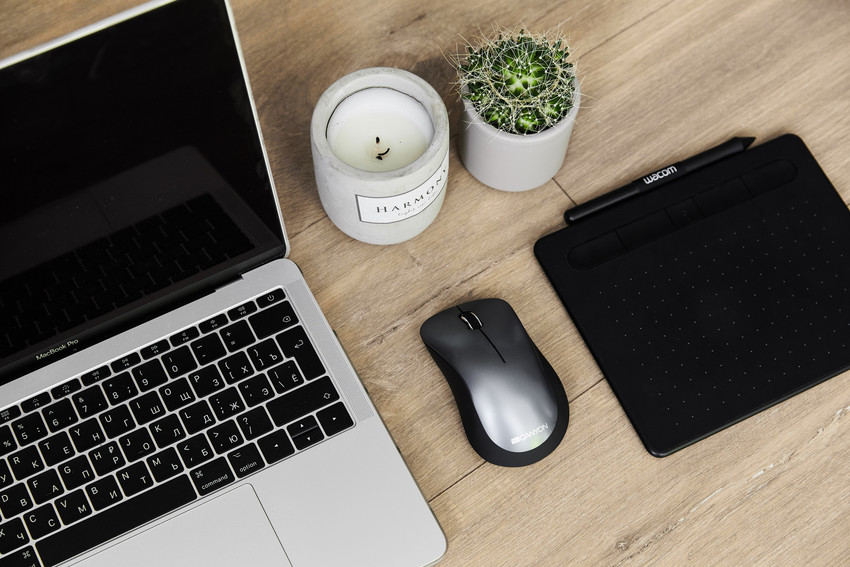
A wireless mouse reaches a laptop one of two ways. The first uses a small USB receiver, a dongle sometimes labeled a “nano receiver,” that slots into a USB port and links to the mouse over a 2.4 GHz radio channel. The second is Bluetooth, where the mouse pairs straight with the laptop’s built-in Bluetooth chip and skips the dongle. Some mice do both. The Canyon OnClick 22, for one, switches between Bluetooth 5.0 and 2.4 GHz at the push of a button, handy when you want Bluetooth’s broad reach on a tablet and the steadier, low-latency feel of a USB receiver on the laptop.
To tell which type you hold, check the box for “Bluetooth” or “2.4 GHz,” or flip the mouse over, where dual-mode models carry a small two-setting switch.

Method 1: connecting a wireless mouse to laptop with a 2.4 GHz USB receiver
The simplest route, since the factory pairs the receiver and mouse before they reach the box.
Windows 10 or 11:
- Load fresh batteries or charge the mouse, then slide its power switch to ON.
- Push the small USB receiver into a free USB port.
- Windows loads the driver on its own, and a notice pops up in the bottom-right corner.
- Move the mouse. The cursor answers within a second or two.
- macOS:
- Turn the mouse on.
- Plug the receiver into a USB-A port, or into a USB-C port through a small adapter if your MacBook drops USB-A.
- macOS picks up the mouse on its own. Nothing to install.
If nothing stirs, jump to the troubleshooting checklist below. This method behaves the same across every recent Windows and macOS build.
Method 2: connecting a Bluetooth mouse to laptop
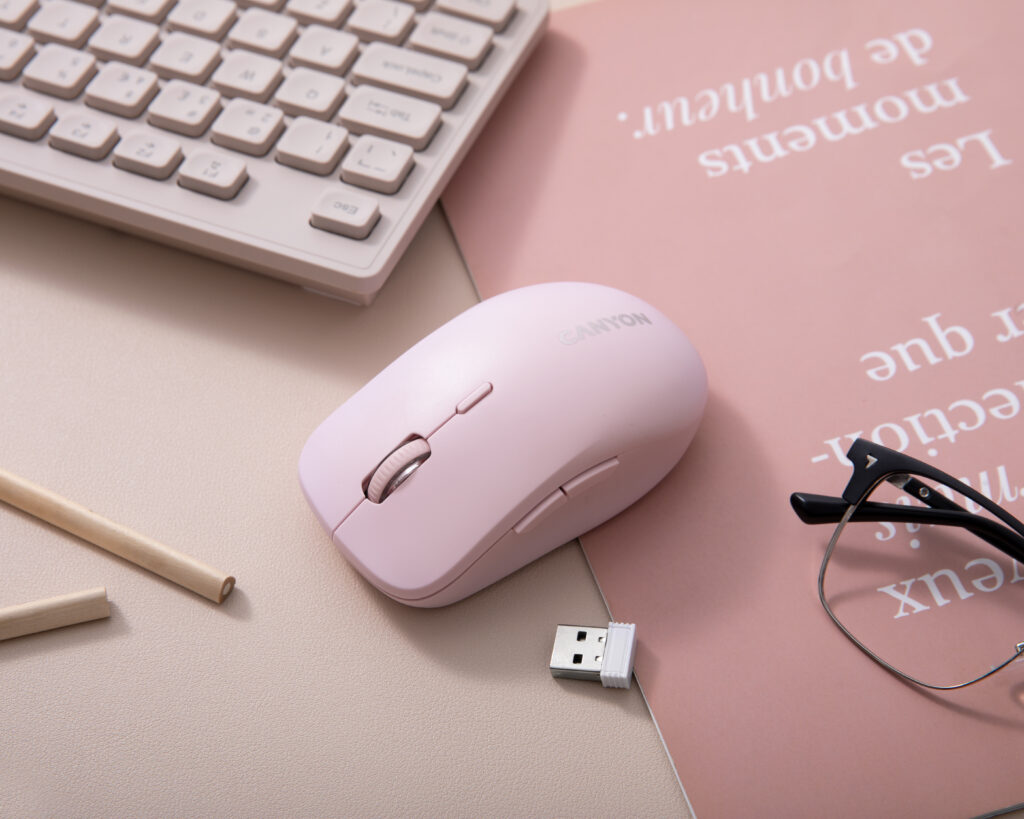
A Bluetooth mouse asks for one extra step the first time, because it needs pairing. After that it reconnects on its own whenever both devices switch on.
Windows 10 or 11:
- Switch the mouse on. On a dual-mode model, slide the connection switch to Bluetooth, or tap the mode button until the light turns blue (the color varies by model).
- Hold the pairing button on the underside for about three seconds, until the light starts to flash. The mouse is now discoverable.
- On the laptop, open Settings, then Bluetooth & devices, and confirm Bluetooth is on.
- Click “Add device,” then “Bluetooth.”
- Wait for the laptop to find the mouse. It shows up under a name like “Canyon MW-12.”
- Click the name to finish pairing. The light stops flashing once you connect.
- macOS (Ventura, Sonoma and later):
- Switch the mouse on and put it in pairing mode the same way, holding the mode button about three seconds until the light flashes.
- Open System Settings, then Bluetooth.
- Wait for the mouse to surface in the Nearby Devices list.
- Click “Connect.” Done.
On older macOS (Monterey and back), the menu reads System Preferences, then Bluetooth, but the steps match. This doubles as how to sync a mouse to a laptop you have paired before, if the pairing ever drops: put the mouse back in pairing mode and reconnect it from Bluetooth settings.
2.4 GHz or Bluetooth: which should you use?
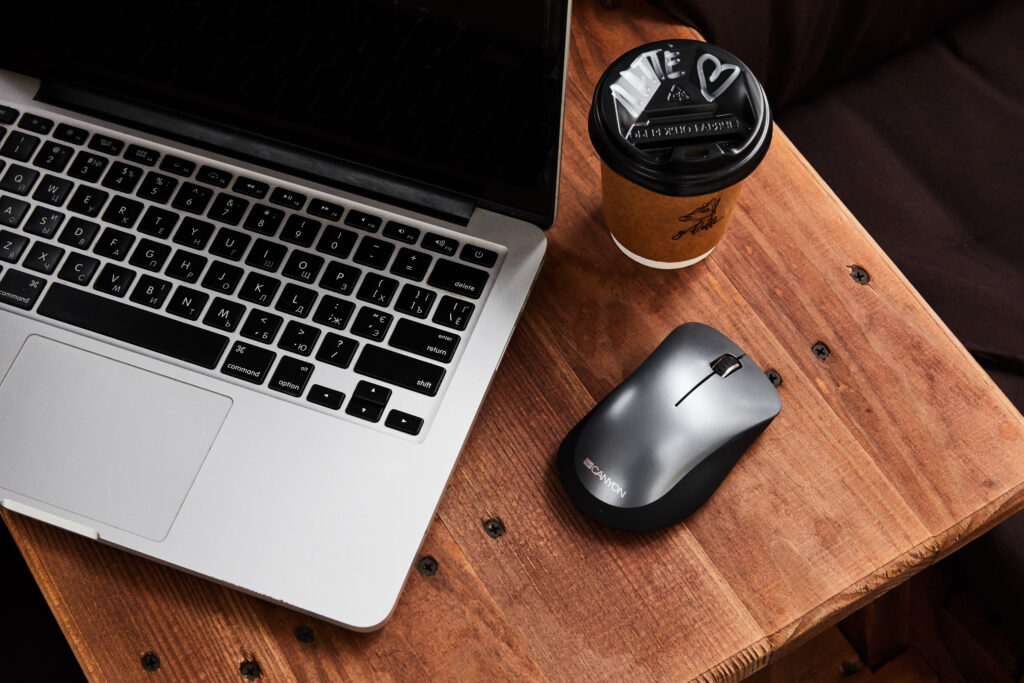
If your mouse does both, the choice comes down to where you sit. A 2.4 GHz receiver gives the steadiest, lowest-latency link, which you feel in fast cursor work, photo editing and light gaming, and it asks for one free USB port. Bluetooth frees that port and pairs with phones and tablets as easily as with laptops, at the cost of a fraction more lag and the odd reconnect after the machine wakes from sleep. For a desk you come back to each day, the receiver is the safer bet. For travel, where every port counts and you jump between devices, Bluetooth earns its place. A dual-mode mouse like the OnClick 22 lets you keep both and flip between them, so you never have to commit to one.
How do you connect a wireless mouse to a laptop with no free USB port?
Slim laptops raise this one, the ones where USB-C is the only socket. Two ways out: run a Bluetooth mouse, or drop the 2.4 GHz receiver into a USB-C hub. The Canyon MW-12 and OnClick 22 earn their keep here, since both handle either connection. Sit on Bluetooth through the office day, then feed the receiver into a hub at home when you want the fastest response. If you already run a docking station for a monitor, the receiver has a home there too, which keeps the laptop’s own ports free for a drive or a phone.
When it won’t behave: a quick troubleshooting checklist
Maybe your laptop not recognizing wireless mouse is the symptom, or the cursor goes unresponsive, or you catch the cursor freezing for a beat, or the connection drops mid-task. Work these checks in order. Most trouble clears inside a minute or two.
- Power and batteries. If the wireless mouse not working at all is what you see, this is the usual cause. Swap the batteries or charge the mouse. A weak cell makes movement laggy and jumpy well before it dies.
- The receiver. On a 2.4 GHz mouse, try a different USB port. A port can sit disabled or limited, often right after a system update.
- Distance and obstacles. Bring the mouse nearer the laptop. Metal surfaces, USB 3.0 ports that bleed interference into the 2.4 GHz band, and even a thick desk pad can throw it off.
- Re-pair Bluetooth. “Forget” the mouse in Bluetooth settings, then add it back from scratch. That fixes most “won’t connect” and “won’t wake after sleep” cases.
- Restart the laptop. It helps more than it should, since a clean Bluetooth stack on boot clears a number of small bugs.
- Update Bluetooth and chipset drivers. On Windows, open Device Manager, then Bluetooth, right-click the adapter, and update the driver. On macOS, run Software Update.
- Test on another device. If the mouse runs fine on a phone, a tablet or a second laptop, the fault sits with your laptop, not the mouse.
When it’s time for a new one: how to add wireless mouse to laptop hardware the easy way
Sometimes the mouse itself is the problem: worn clicks, a battery that won’t hold, a sensor past its prime. If you want a replacement that works out of the box, the Canyon dual-mode range keeps it simple. The MW-12 is a light, silent-click mouse with DPI you can dial from 800 to 2400 and an 8 to 10 metre wireless range, easy for presentations and everyday work alike. The OnClick 22 adds an RGB backlight, a fuller ergonomic shape, and Bluetooth 5.0 next to the 2.4 GHz receiver, so you pair it with several devices and hop between them on one button. Both follow the exact steps above, with no software to install.
A word on battery life
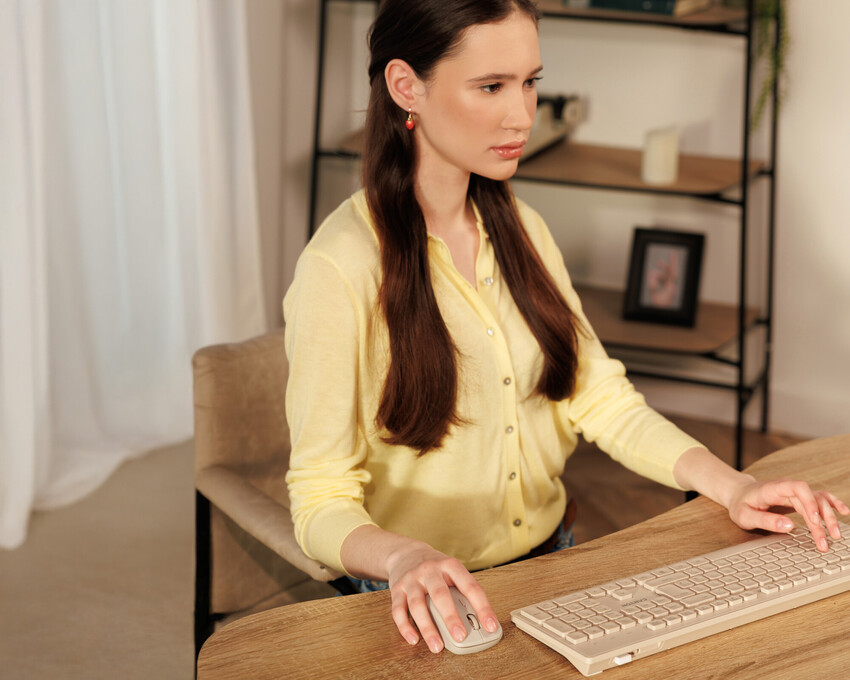
Most wireless mice run for months on a single set of AA or AAA batteries, longer on Bluetooth than on 2.4 GHz, since the receiver draws a little more power. Rechargeable models top up over USB-C in an hour or two. Whichever you own, a mouse that starts skipping or lagging is asking for power long before it dies outright, so a fresh cell or a quick charge fixes more day-to-day glitches than any driver update. Flip the switch on the underside when you pack the mouse away, and you save weeks of standby drain over a year.
A quick recap
Pairing a wireless mouse comes down to two paths: slot a small receiver into a USB port, or pair the mouse over Bluetooth. Once you know which type you hold, setup runs under a minute, and most early trouble clears with a battery change, a port swap, or a fresh pairing. From there it is you, the cursor, and a much clearer desk.
 Tatyana Ryzhova