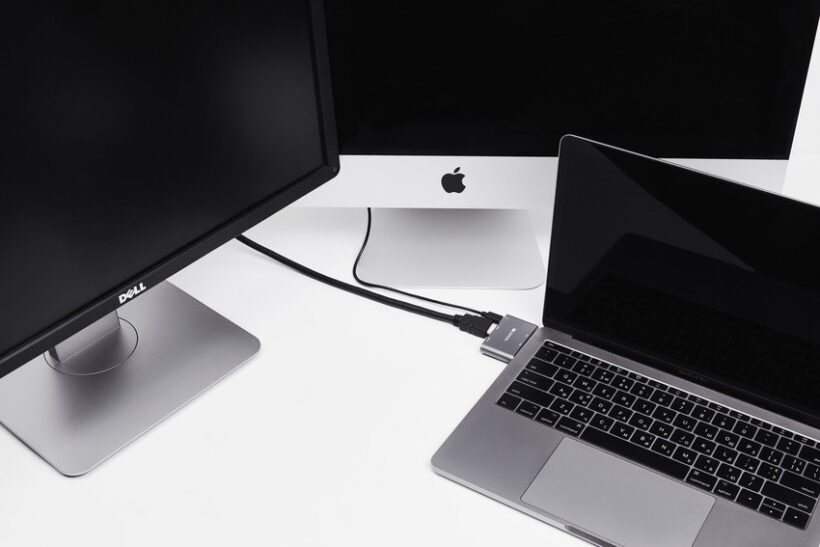
A second screen turns a laptop into something close to a desktop. Spreadsheets stop falling off the edge, a video call sits on one display while your notes sit on the other, and design work finally has room to spread out. The first question is a fair one: can i hook up two monitors to my laptop, and how? Usually yes, and by more than one route. Some need nothing but a cable. Others ask for a small piece of hardware that turns the machine into a workstation. This guide covers the options, from a plain direct connection to a full laptop dual monitor docking station, so you can match the method to your laptop and your desk.
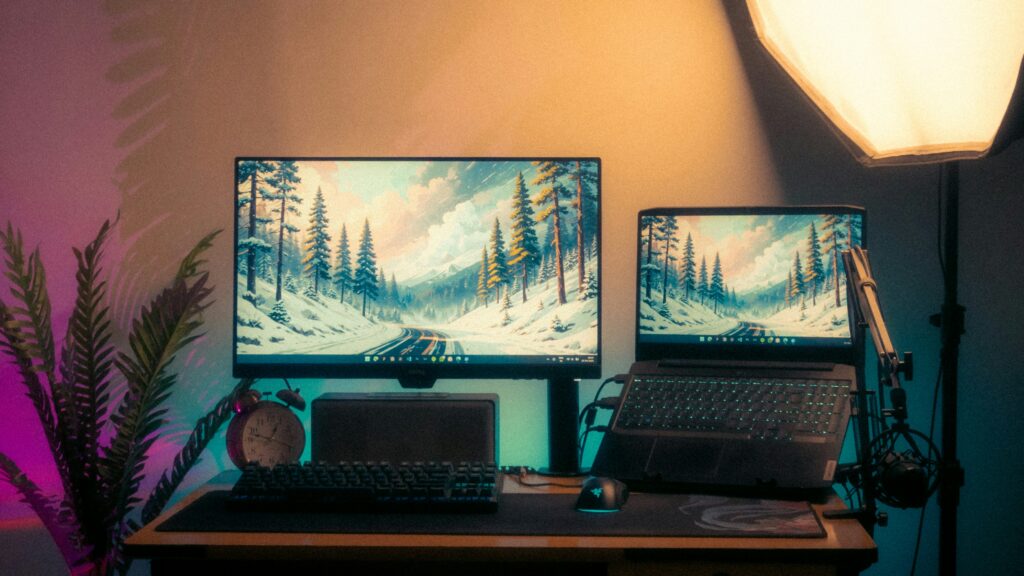
Before you start: check what your laptop can do
Setting up dual monitors with laptop hardware starts with knowing what the machine can push. Two things decide it: the video outputs you have (HDMI, DisplayPort, USB-C, Thunderbolt) and whether the graphics chip can drive two external screens at once. Most current laptops manage both. Thin ultrabooks and some budget models cap out at a single external display no matter how many cables you plug in. Your laptop’s spec page, or the GPU documentation, lists the maximum number of external displays it supports. The check takes a minute and saves you an afternoon.
The cap varies more than people expect. Many mainstream Windows laptops handle two external monitors on top of their own screen. Apple Silicon MacBooks split by chip: the base M-series often drives a single external display, while Pro and Max versions run several. No dock or adapter adds a screen the graphics chip refuses to render, so read the maximum-external-displays line before you spend anything. If your laptop stops at one and you need two, that points you toward a Thunderbolt machine or a dock that carries its own display controller, which some do.
Method 1: the laptop’s built-in ports
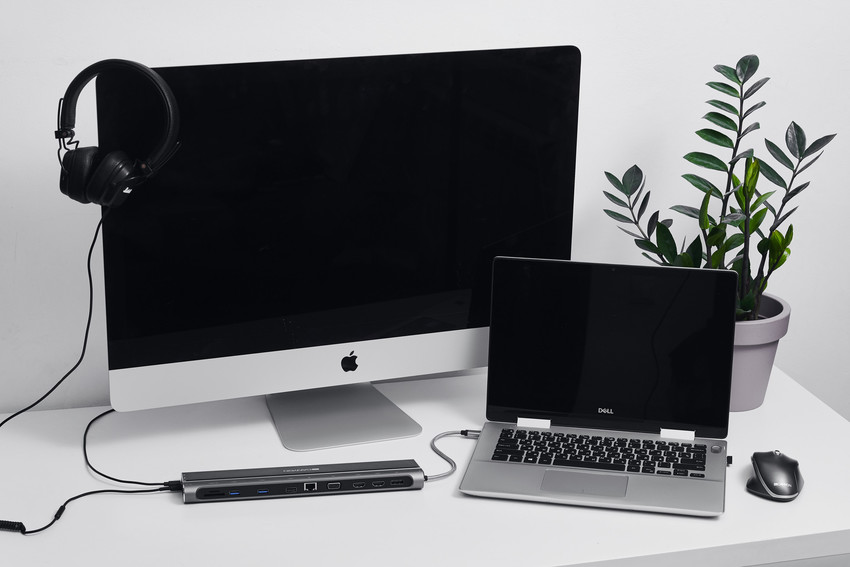
Two video outputs on the laptop, and you connect each monitor straight to the machine. Common pairings run one HDMI output alongside a USB-C port with DisplayPort Alt Mode, or two USB-C / Thunderbolt ports that both carry video. A Thunderbolt 4 or USB4 port gives you the most room to work: it drives a high-resolution display and feeds power delivery back to the laptop over the same cable. Match each port to the right cable, plug in both screens, and you are done.
Method 2: an adapter for older monitors
Older monitors often carry only an HDMI or VGA input, while newer laptops lean toward USB-C alone. A small adapter bridges the gap: USB-C to HDMI, USB-C to VGA, or HDMI to DisplayPort. It is the cheapest way to keep a screen you already own. One adapter usually adds one display, though, so a second monitor still wants a free port somewhere, or a hub. Whatever adapter you pick, check that it handles your monitor’s resolution and refresh rate. A 4K screen, for instance, needs one rated for 4K at 60 Hz to stay smooth.
Method 3: a USB-C hub or docking station
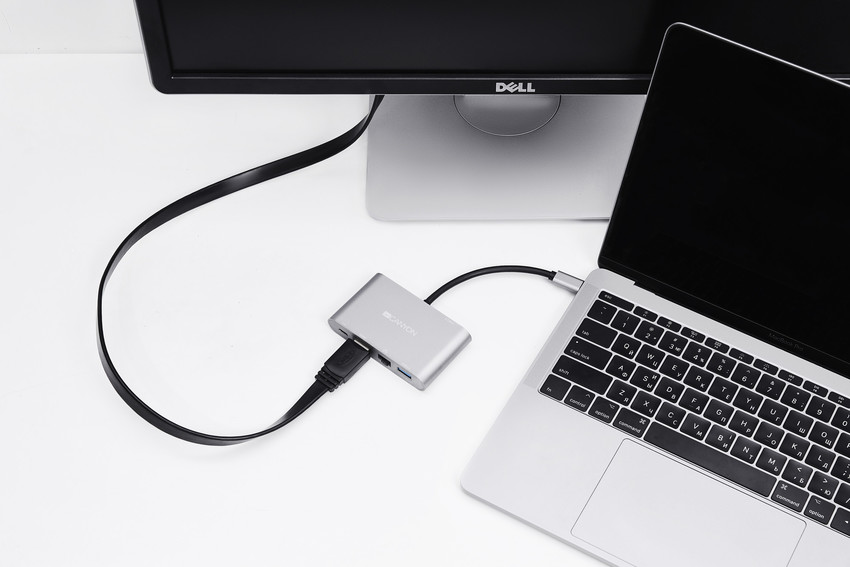
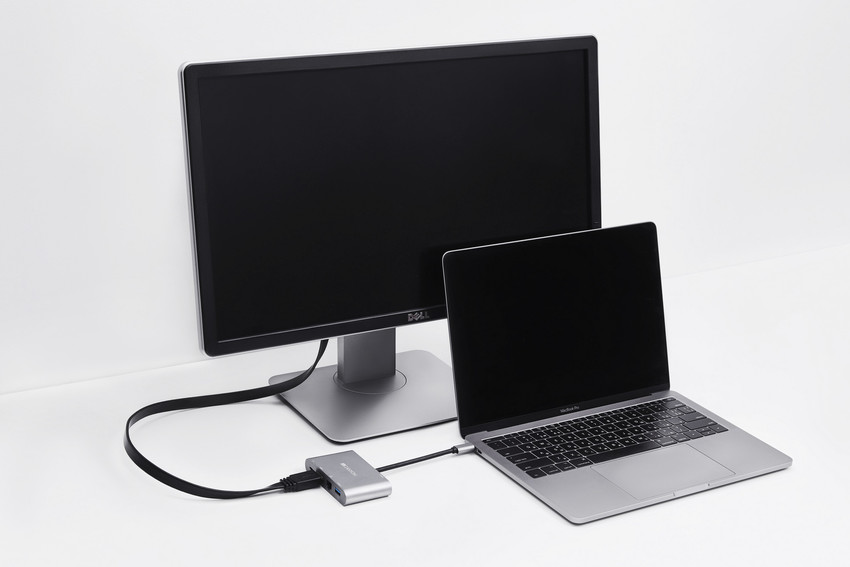
For most desks, this is the tidy answer. A USB-C hub or docking station plugs into one port on the laptop and hands you the connections you need on the far side: two video outputs, a few USB Type-A ports for peripherals, Ethernet, an SD card reader, and pass-through charging to keep the laptop powered. One cable into the laptop, everything else parked on the dock. Come back to your desk, reconnect that single cable, and both monitors wake up.
Canyon’s USB-C hubs suit this workflow. The 14 Port USB-C Docking Station HDS-95ST runs two HDMI outputs at 4K each and passes power back to the laptop over the same link. The 13 Port USB-C Hub DS-12 makes another solid pick, with two HDMI ports, or HDMI plus VGA if one of your screens is older, and up to 100W USB-C charging. Both go plug-and-play on Windows: no drivers, no software, connect and the monitors show up.
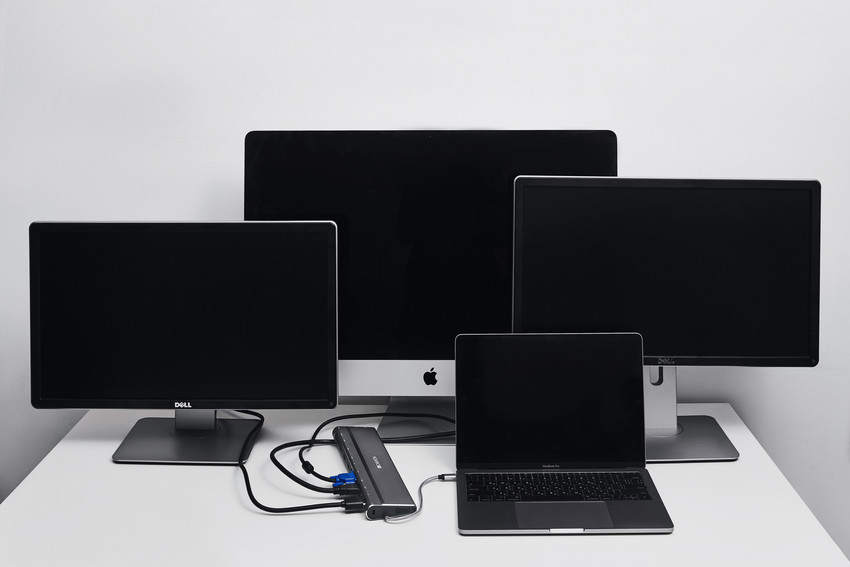
A note for Mac owners: macOS drives dual external displays over Thunderbolt on its own, but it skips MST (Multi-Stream Transport), the trick that splits one USB-C port into two separate HDMI feeds on a hub. On a MacBook, a standard USB-C hub tends to mirror the same picture across both HDMI ports rather than show two different desktops. A Thunderbolt dock, or a Mac with several Thunderbolt ports, gets past that. This also answers how to connect two monitors to laptop with docking station gear: pick a dock whose video outputs match your monitors and your platform, plug it in, and arrange the displays in your operating system.
Method 4: daisy-chain with DisplayPort
Some monitors carry a DisplayPort output as well as an input, which lets you daisy-chain them: laptop to the first monitor, first monitor to the second, over DisplayPort cables. MST (Multi-Stream Transport) runs behind this, and it works on Windows machines whose DisplayPort or USB-C output supports it. From the laptop’s side it stays a single cable, but it needs monitors that spell out DisplayPort daisy-chaining in the spec sheet. Most office monitors don’t, so read the specs before you commit.
How to attach 2 monitors to a laptop, step by step
With the hardware sorted, the software takes a couple of minutes. Here are the two systems most people run.
Windows 10 or 11: right-click the desktop, open Display settings, drag the numbered boxes so they match where the monitors physically sit, then choose “Extend these displays.” Set resolution and refresh rate for each screen on its own.
macOS: open System Settings, then Displays, use the arrangement panel to place each screen where it stands on your desk, and choose between extend and mirror. If a screen stays dark, unplug and reconnect the cable, then click “Detect Displays.”
Quick troubleshooting
- No signal on one monitor? Reseat the cable at both ends, then try a different port or a cable you know works.
- Resolution looks off? Open display settings and set the monitor to its native resolution, usually the highest on the list.
- Picture stutters? You may be pushing an unsupported mode, or sending too much data down a cable that can’t carry it. Swap in a certified high-speed HDMI or DisplayPort cable.
- Only one display shows up? Some laptops top out at one external screen. Check the spec sheet.
Choosing the right setup for you
Two video outputs on the laptop and no need for extra USB ports, and two direct cables win on price and simplicity. A USB-C-only laptop plus a wish for a clean desk points to a docking station, one cable in and the rest wired up for good. Same monitors waiting at two locations, and a dock at each desk plus one cable saves real minutes on every trip in. Using two monitors with a laptop for creative work or gaming, you want a connection that carries the resolution and refresh rate you need, so reach for Thunderbolt or DisplayPort ahead of older HDMI or VGA.
What sits on your laptop and what sits on the back of your monitor settle most of this. Once you know both, choosing between a direct cable, an adapter and a dock takes seconds. Sort it once, and a second screen goes from a research project to one click of a cable.





 Tatyana Ryzhova