Getting Better Audio Without Buying New Headphones
There is a particular frustration that comes from putting on your headphones, pressing play, and feeling like the music just does not sound the way it should. Maybe the volume is lower than it used to be. Maybe the bass has disappeared. Maybe everything sounds flat and slightly muffled, even though these same headphones used to sound great. Before you assume the headphones are broken or start browsing for replacements, it is worth knowing that in most cases, the problem has a practical fix — often several.
Understanding how to improve headphone sound does not require technical expertise or expensive equipment. It requires knowing which variables actually affect what you hear and working through them systematically. Some fixes take thirty seconds. Others take a few minutes of configuration. All of them are free or very close to it.
This guide covers the most common causes of poor headphone audio — volume limits, EQ settings, source quality, physical condition, and connection type — and explains what to do about each one.
Why Your Headphones Might Sound Quieter Than They Should
The most common complaint after “bad sound quality” is simply “not loud enough.” There are several reasons this happens, and they are worth checking in order before assuming a hardware fault.
The first place to look is your device’s volume settings — not just the main volume slider, but any secondary volume limits that might be active. Many smartphones and tablets include a feature called a volume limit or hearing protection cap that prevents the output from reaching maximum levels. On iOS devices, this is found under Settings > Sounds & Haptics > Headphone Safety. On Android, the path varies by manufacturer but is typically under Settings > Sound > Volume. These limits are enabled by default on some devices and set a ceiling that can make headphones sound noticeably quieter than they are capable of being.
Media apps have their own volume normalization settings too. Spotify, Apple Music, and most streaming services include a “normalize volume” feature that brings all tracks to a consistent perceived loudness — which sounds useful in theory but often means louder tracks are turned down. If your music sounds quieter through a streaming app than through a local file player, check the normalization setting and try disabling it.
Operating system audio enhancements are another variable. Windows includes a feature called “Loudness Equalization” under the audio device properties that can either help or hurt depending on the headphones — it is worth experimenting with. macOS has fewer of these options by default, but third-party audio drivers sometimes install their own processing layers.
Knowing how to make headphones louder, in most cases, starts with removing the limits that have been quietly applied without you realising it.
The Equalizer: The Most Powerful Free Tool You Are Not Using
If volume is not the issue but the sound quality still disappoints — lacking bass, sounding harsh in the high frequencies, or feeling flat and lifeless — the equalizer is the most powerful tool available for addressing it, and it costs nothing.
An equalizer (EQ) adjusts the relative level of different frequency ranges in the audio signal. Boosting the bass frequencies (roughly 60–250 Hz) adds warmth and weight. Boosting the upper midrange (around 2–5 kHz) brings out the presence and clarity of vocals and instruments. Reducing the lower midrange (around 250–500 Hz) can clear up a muddy or boxy sound. Pulling back the high frequencies (above 8 kHz) reduces harshness in headphones that sound bright or fatiguing.
Most smartphones, computers, and streaming apps include a built-in equalizer, though the quality and flexibility varies. On Android, the system equalizer is accessible through the sound settings. On iOS, it is available within Apple Music specifically (Settings > Music > EQ). Windows Media Player and most third-party players on Windows and macOS include EQ panels. For more precise control, free apps like Equalizer APO on Windows or Boom 3D offer parametric EQ with much finer adjustment than the preset-based built-in options.
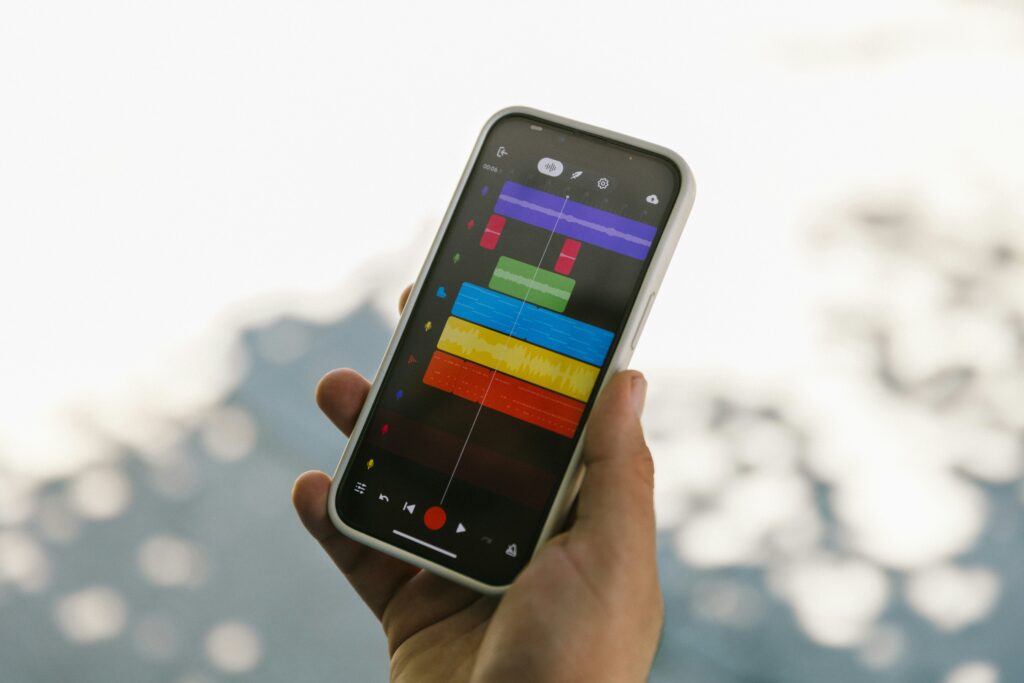
The key is to adjust by ear rather than applying presets blindly. The “Bass Boost” preset sounds dramatic but often introduces distortion. A more careful approach — small adjustments of 2–3 dB at a time, checking how they affect specific tracks you know well — leads to a much better result.
Checking the Source: Audio Quality Starts Before the Headphones
A fact that surprises many people when they first investigate audio quality: the headphones are only as good as the signal they receive. If the audio file or stream is low quality, the best headphones in the world will faithfully reproduce that low quality — every artefact, every compression smear, every lost detail.
The most common culprit is compressed audio. MP3 files at low bitrates (128 kbps or below) discard a significant portion of the audio data to reduce file size. The result is a loss of high-frequency detail, a slightly fuzzy quality to cymbals and upper harmonics, and a general reduction in clarity. Streaming services at low quality settings do the same thing. Switching to a higher bitrate — 320 kbps MP3, AAC at 256 kbps, or lossless formats like FLAC or Apple Lossless — removes this bottleneck and allows your headphones to reproduce what was actually recorded.
Most streaming services now offer a high-quality or lossless tier. Spotify’s “Very High” quality setting streams at 320 kbps. Apple Music’s lossless option is free for existing subscribers. Tidal and Amazon Music offer lossless and high-resolution audio. In the settings of whichever service you use, check what quality setting is active — many default to a lower setting to reduce data usage, and simply switching to the highest available option is one of the fastest ways to increase volume in headphones’ perceived quality.
It is also worth checking the audio output settings on your computer if you are listening through a wired connection. Windows and macOS can be set to output at specific sample rates and bit depths — matching these to the native format of your audio files avoids unnecessary resampling that can degrade sound quality.
Physical Maintenance and What Dirt Does to Audio
Headphone audio degrades over time in ways that are not always obvious until you compare to something clean. The most straightforward cause: physical obstruction of the drivers.
For in-ear headphones and earbuds, earwax accumulation in the nozzle mesh is extremely common and causes a noticeable reduction in volume and high-frequency clarity. The fix is simple: use a dry, soft-bristled brush or a wooden toothpick to carefully clear the mesh without pushing debris further in. Some earbuds come with a small cleaning tool for exactly this purpose. A lightly damp cloth — never wet — can clean the outer surfaces. Avoid alcohol on silicone ear tips as it degrades the material over time.
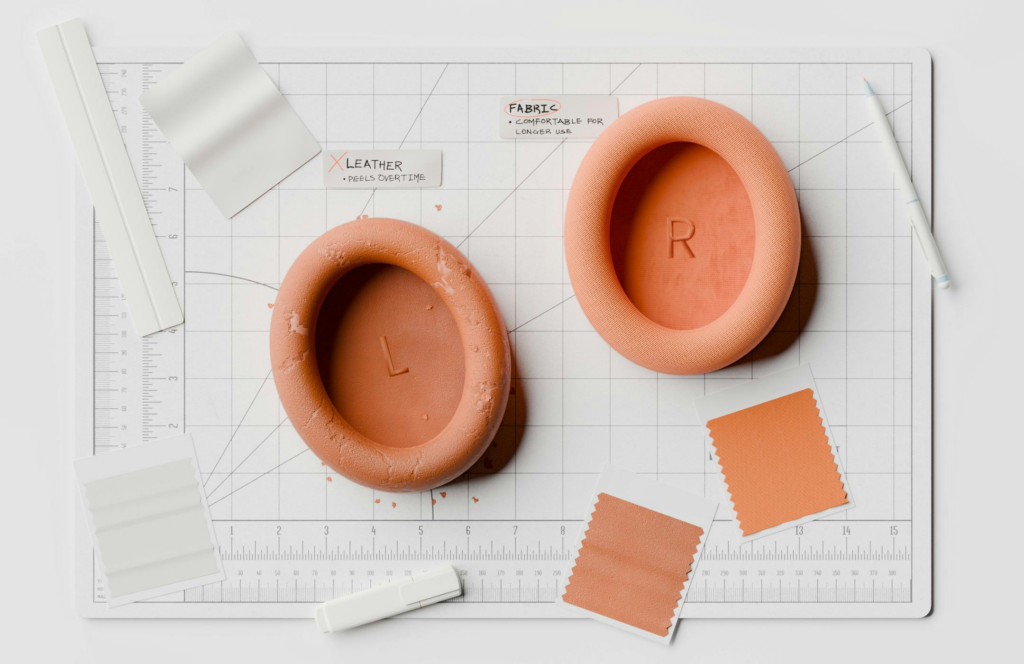
For over-ear and on-ear headphones, the ear pads are the main physical variable. Foam and pleather ear pads compress and degrade with use, losing their seal against the ear. This seal matters more than most people realise: a proper acoustic seal prevents low frequencies from leaking out, which is why worn-out pads make bass sound thin and distant. Replacement ear pads are available for most popular headphone models and are typically inexpensive. Fitting a new set of pads can restore a headphone’s sound profile dramatically.
The headphone jack and cable deserve attention too. A worn or partially disconnected headphone jack introduces crackling, intermittent audio, or loss of one channel. Gently rotating the plug while it is inserted can confirm whether the connection is the issue. If so, the jack — on the headphone or the device — may need cleaning or replacement. Compressed air can remove debris from a 3.5mm socket; a cotton bud can address more stubborn material.
Wired Versus Wireless: What the Connection Type Changes
One of the less obvious factors in headphone audio quality is how the audio signal reaches the drivers — and this is where the choice between wired and wireless becomes relevant.
Wired headphones receive an analogue signal directly from the source device. The quality of this signal depends on the quality of the headphone amplifier built into the device — and here, smartphones and laptops vary considerably. Budget devices often have weak headphone amplifiers that struggle to drive headphones with higher impedance (measured in ohms). If your headphones sound quiet or thin through a phone but much better through a laptop or a dedicated audio device, impedance mismatch is likely the cause. A portable headphone amplifier — a small, inexpensive device that plugs between your phone and your headphones — solves this cleanly and can be found for under €30.
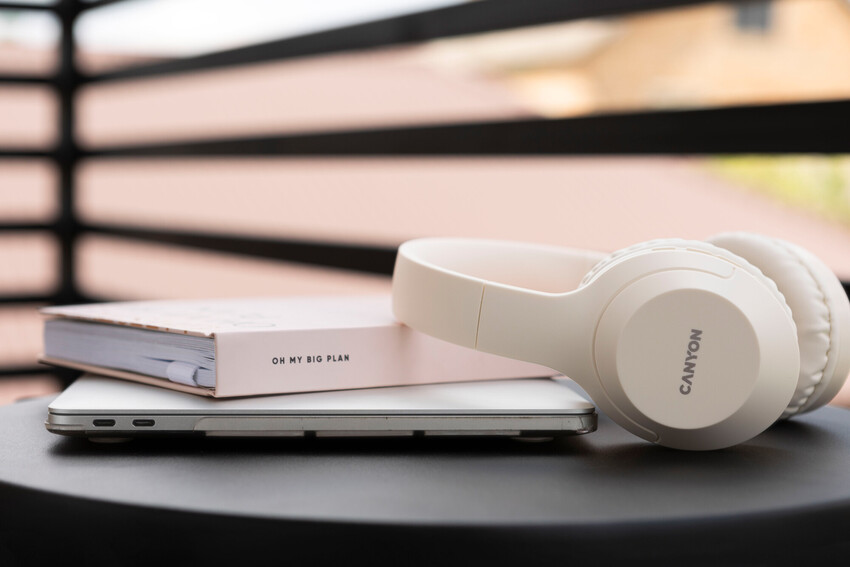
Wireless headphones receive a digital signal that is decoded onboard. The quality of this depends on two things: the Bluetooth codec being used, and the quality of the DAC (digital-to-analogue converter) and amplifier inside the headphones. SBC is the universal baseline Bluetooth codec — it works everywhere but compresses the audio significantly. AAC performs better, particularly on Apple devices. aptX and aptX HD offer near-CD-quality wireless audio on compatible devices. LDAC, developed by Sony and now available on many Android devices, supports high-resolution wireless audio. Checking whether your phone and headphones share a higher-quality codec is one of the fastest ways to boost headphone sound without any physical changes.
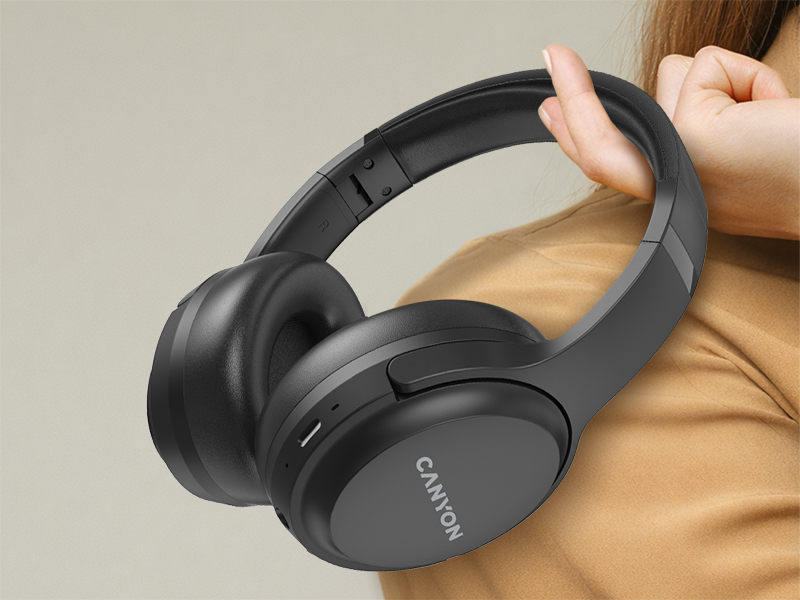
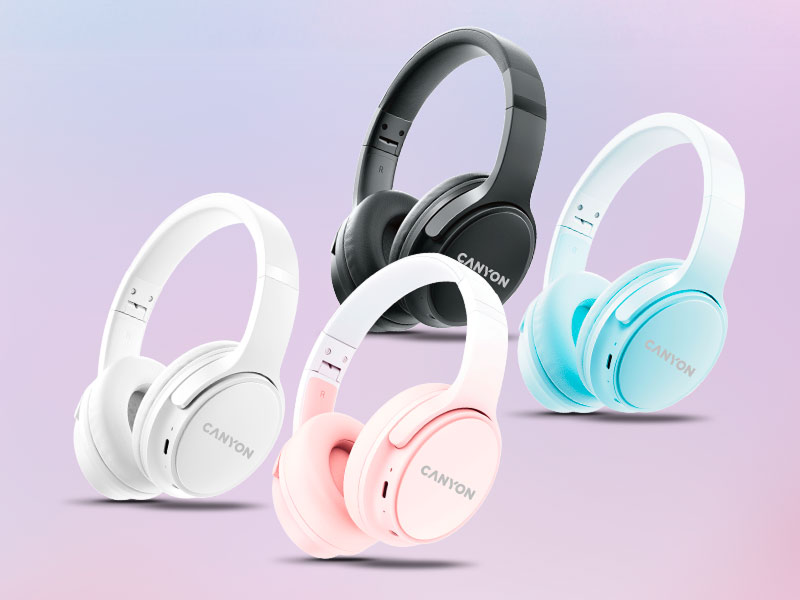
Canyon headphones support Bluetooth 5.0 and compatible audio codecs, which means pairing them with a modern Android or iOS device will automatically negotiate the best available codec for your specific combination — with no configuration required.
Software Tools Worth Knowing About
Beyond the built-in EQ options covered earlier, there is a category of software tools that give you more control over your audio output than the defaults allow.
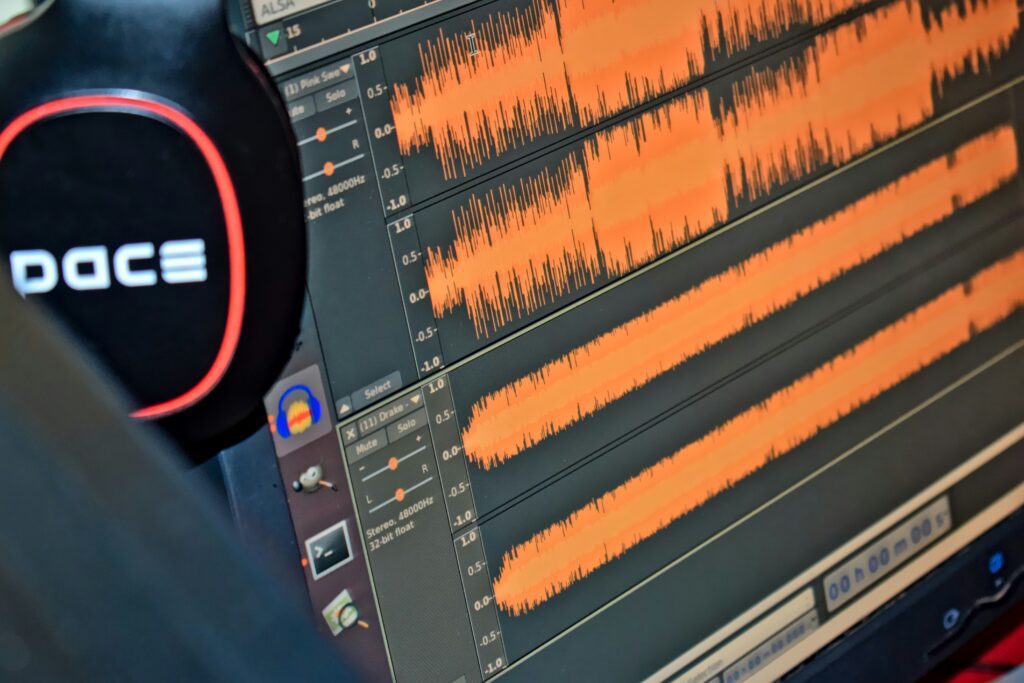
On Windows, Equalizer APO is a free, open-source parametric equalizer that operates at the system level — meaning it affects all audio output, regardless of which app is playing. Paired with the Peace GUI interface, it becomes a fully flexible EQ tool with the ability to load community-created profiles tuned specifically for popular headphone models. If you own a well-known pair of headphones and want to hear them at their best, searching for an AutoEQ or Oratory1990 profile for your specific model and loading it into Equalizer APO is one of the most impactful improvements you can make.
On macOS, Boom 3D and eqMac are both capable options. eqMac is free and open-source; Boom 3D costs a small one-time fee and adds spatial audio and volume enhancement features alongside the EQ.
On mobile, Wavelet on Android uses AutoEQ-sourced profiles for hundreds of headphone models and applies them automatically at the system level. It is free, lightweight, and the single most effective mobile tool for improving headphone sound for someone who does not want to tune by ear.
None of these tools change the hardware. What they do is ensure the hardware is receiving a signal that is shaped for its specific characteristics — compensating for peaks and dips in the frequency response that the manufacturer tuned for or left in place. The result is louder earphones in the perceived sense, better balance across the frequency range, and a more detailed, engaging sound from equipment you already own.
When It Actually Is Time for an Upgrade
Most of the steps above address problems with signal path, settings, maintenance, or configuration. But occasionally, the honest answer is that the headphones themselves are the limiting factor.
Signs that an upgrade is warranted: the drivers are physically damaged (one side quieter than the other with no cable or connection issue), the cable has an irreparable fault and replacement cables are unavailable, or the ear cups and headband have deteriorated beyond what replacement parts can address. In these cases, the repair cost often approaches or exceeds the cost of a new pair.
If you are shopping for new headphones and want to avoid repeating the same audio disappointments, the key specifications to look for are: driver size (larger drivers generally produce better bass in over-ear headphones), frequency response range (20 Hz to 20 kHz covers the full range of human hearing), impedance (lower impedance for phone use; higher impedance for amplified setups), and whether the model supports a high-quality Bluetooth codec if wireless.
Canyon’s range of wired and wireless headphones spans casual listening, gaming, and work-from-home use cases — with clear specs published for each model, making it straightforward to match the headphone to the use case before purchasing. If you are replacing a pair that has served its time, the combination of good hardware and the optimisation steps above will give you audio that sounds noticeably better from the first listen.

 Herzberg
 Tatyana Ryzhova